7 Essential Laptop Maintenance Tips
Laptops have become integral to our daily lives, whether for work, study, or entertainment. While these devices are designed for durability and efficiency, they aren’t immune to wear and tear. With an estimated lifespan of about three to five years, they’ll inevitably encounter issues over time. However, with proper care and maintenance, you can ensure your laptop runs smoothly throughout its lifespan.
-
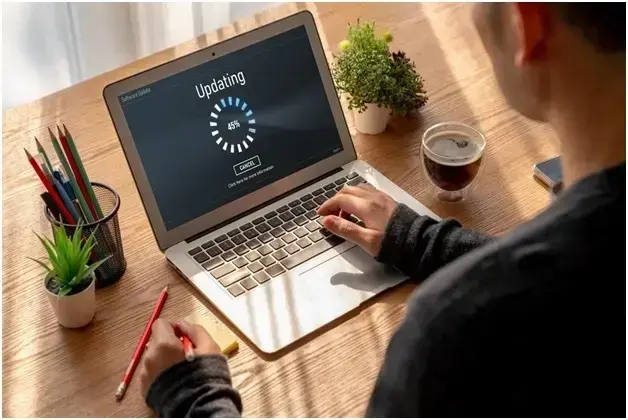
Regularly Update Your Software
Keeping your laptop’s software up to date is fundamental for its security and performance. Software developers regularly release updates to patch security vulnerabilities, fix bugs, and introduce new features. Running outdated software exposes your laptop to potential security risks and may result in compatibility issues with new applications and devices.
- Enabling Automatic Updates: To simplify the update process, enable automatic updates on your laptop. For Windows users, navigate to the “Settings” menu, select “Update & Security,” and turn on automatic updates.
Mac users can go to “System Preferences,” click “Software Update,” and check the box for automatic updates. This setting ensures that your laptop installs important updates as soon as they are available without requiring manual intervention.
- Update Applications Regularly: In addition to updating your operating system, keeping your applications current is vital. Many apps offer automatic update options within their settings. If not, regularly check the application’s official website or the app store from which it was downloaded for the latest versions.
Updated applications not only offer new features but also provide fixes for known issues and improvements in stability and security.
-
Manage Your Storage
A cluttered hard drive slows your laptop’s performance. Removing unnecessary files, clearing the cache, and deleting temporary files can help maintain efficient operation. Use built-in tools like Disk Cleanup for Windows or Storage Management for macOS to identify and eliminate unneeded files.
Maintaining at least 10-15 percent free space on your hard drive is essential for optimal performance. This space allows your system to run smoothly, facilitating the efficient operation of various applications and the operating system itself.
-
Protect Against Viruses and Malware
Laptops are susceptible to numerous cyber threats, including viruses, malware, ransomware, and phishing attacks. These malicious programs can compromise your personal information, corrupt your files, and adversely affect your laptop’s performance.
- Antivirus and Anti-Malware Software: Investing in reliable antivirus and anti-malware software is non-negotiable for safeguarding your laptop. These programs offer real-time protection against threats, regularly scanning your system for malicious activity. Choose software that provides comprehensive protection, automatic updates, and prompt customer support.
- Safe Browsing Practices: Adopting safe browsing habits is equally crucial. Be wary of downloading files or clicking on links from untrusted sources. Frequently update your web browsers and enable their built-in security features, like Google Chrome Safe Browsing or Firefox’s Enhanced Tracking Protection, to enhance your online safety. Understanding the basics of internet security and vigilance can reduce the risk of becoming a victim of online threats.
-
Clean Your Laptop
Dust and debris accumulation can lead to overheating and other hardware issues. Regularly clean your laptop’s exterior, including the screen, keyboard, and ports. Use a soft, lint-free cloth for the screen and compressed air for the keyboard and ports to remove dust without causing damage. Avoid harsh chemicals or excessive moisture, which can harm your laptop’s components.
A clean laptop looks good and performs better; however, you also need to keep the interior dust-free. Dust accumulation can obstruct ventilation, leading to increased heat, decreased performance, and potential damage. Frequently cleaning the internal components with compressed air and a soft brush prevents these issues, helping maintain your laptop’s functionality and longevity.
-
Optimize Battery Life
Laptop batteries naturally degrade over time, but certain practices can slow this process. Adjust your power settings to “energy-saving” mode, dim your screen brightness, and close unnecessary applications running in the background. Also, avoid exposing your laptop to extreme temperatures, which can speed up battery degradation.
Periodically calibrate your battery to ensure accurate charging and usage readings. Calibration involves fully charging the battery, discharging it completely, and then recharging it again. This process helps maintain the battery’s health and extends its lifespan. If your laptop is fine and is just in need of a new battery, luckily you can find replacement laptop batteries that can give you a little more time with your laptop hardware.
-
Back Up Your Data Regularly
Data loss can be devastating due to hardware failure, accidental deletion, or malware attack. Regular backups safeguard your important files, providing a safety net in case of unexpected data loss incidents.
There are various methods to back up your data — cloud-based services like Google Drive, Dropbox, or OneDrive offer convenient and accessible solutions. External hard drives or other physical storage devices provide reliable offline backup options. Consider using a combination of these methods for stronger data protection.
Set a schedule for regular data backups. Many backup solutions offer automatic scheduling features, ensuring your data is consistently and routinely saved without requiring manual intervention. Consistent backups guarantee that your most recent and relevant data is always protected.
Source: Rawpixel.com/ Shutterstock.com
-
Uninstall Unnecessary Programs
Over time, your laptop may accumulate programs and applications you no longer use. These take up valuable storage space and can slow down your system. Regularly review the installed programs on your laptop and uninstall those that are unnecessary or redundant.
Removing unused software can lead to noticeable improvements in your laptop’s performance. It frees up disk space, reduces background processes, and minimizes your system’s memory and CPU load. This streamlined digital environment allows your laptop to run more efficiently, with faster load times and smoother operation.
For Windows users, go to the “Control Panel” and select “Programs and Features.” For Mac users, open the “Applications” folder and drag unwanted apps to the trash. Always empty the trash or recycle bin afterward to completely remove the programs from your device.
Providing Optimal Laptop Care
Ensuring your laptop’s longevity and optimal performance is simple with the right practices. Regular maintenance acts as a shield, safeguarding your device from potential issues, extending its life, and guaranteeing a smoother, more efficient computing experience.
Remember — a well-maintained laptop is not just about saving money on repairs or replacements. It’s about ensuring reliability when you need it most.